Protect Private Photos with Google Photos Locked Folder
To enable the Locked Folder in Google Photos: Open the app, navigate to Library > Utilities, and tap Locked Folder. You will be prompted to set up your device's screen lock (PIN, pattern, or biometric) to secure it. Photos moved here will not appear in your primary grid, memories, or albums.
In This Guide
- Understanding the Google Photos Private Folder
- ways to enable Google Photos Locked Folder
- Why Google Photos Locked Folder Is Not Showing
- The Limitations of Native Locking (And Our Recommendation)
- approaches Comparison: Native vs external
- Mobile Privacy controls You Should Enable Now
- Frequently Asked Questions
The Google Photos Private Folder Explained
A smartphone can reveal a great deal about your private life. From sensitive financial screenshots to private family moments, we capture it all. The Google photos locked folder function was added to improve mobile privacy: letting you keep selected media away from your primary scrolling grid without needing to delete it.
When you set up a locked folder on Google Photos, the selected images and videos stay out of the primary Photos tab, search results, albums, and any external apps that have access to your device's media library. Think of it as a digital safe within the app, secured by your device's current screen lock.

This walkthrough explains ways to create a locked folder in Google photos across platforms, how to securely move your media, and what to do when native OS approaches aren't enough to safeguard your privacy.

Ways to Enable Google Photos Locked Folder
The process to enable the locked folder function in Google Photos varies slightly depending on whether you are using an Android device or an iOS device. We have broken down the exact steps below.
Locked Folder Google Photos Configuration for Android
- Open the Google Photos app on your Android device.
- Tap on Library at the bottom right, then select Utilities at the top.
- Scroll down to the "Organize your library" section and tap Locked Folder.
- Tap Set up Locked Folder.
- Follow the on-screen prompts to authenticate using your device's screen lock (fingerprint, pattern, or PIN).
- Once authenticated, the folder is active. You can now tap "Move items" to add photos.
Requirement: Your Android device must be running Android 6 or later.
Google Photos Locked Folder on iPhone
- Launch the Google Photos app on your iOS device.
- Navigate to Library > Utilities.
- Look for the Locked Folder choice and tap it.
- Tap Set up.
- You will be prompted to use Face ID, Touch ID, or your device passcode to secure the folder.
- Confirm your security approach to finish the setup.
Requirement: You must be using iOS 15 or later, and have the latest version of the Google Photos app installed.
Move Photos to Google Photos Locked Folder
Once enabled, moving media is straightforward. Select the photos or videos you want to hide from your primary grid. Tap the three-dot menu icon in the top right corner, and select Move to Locked Folder. You will need to confirm the move via your biometric or PIN lock.

Reasons Google Photos Locked Folder Is Not Showing
Many users run into the frustrating problem of the locked folder choice missing entirely. If you are searching for "google photos locked folder not showing," here are the primary reasons and fixes:
- Outdated App Version: The function requires a modern version of the app. Go to the Play Store or App Store and update Google Photos.
- Unsupported OS Version: Android users need Android 6+, and iPhone users need iOS 15+. Check your system controls for pending OS updates.
- Fully Managed Corporate Devices: If your phone is managed by an employer or school (MDM), IT policy may block local encryption functions. In these cases, access to the folder is denied by group policy.
- No Screen Lock Set: Google Photos relies on your device's lock. If you don't have a PIN, pattern, or fingerprint setup in your phone's primary controls, the Locked Folder will not appear.

Ways to Recover Photos FromFolder LockApp vs Google Photos
It is crucial to understand that Google Photos Locked Folder operates locally on the device unless you explicitly opt-in to cloud backup for the locked folder (a newer function). If you factory reset your phone or clear the app data without backing up, those photos are permanently deleted.
Where Native Locking Falls Short (and What to Use Instead)
Google Photos Locked Folder is convenient, but it has severe limitations: it relies entirely on your device's primary PIN and risks permanent data loss if your hardware fails. For true privacy, we recommend a cross-platform solution utilizing AES 256-bit military-grade encryption to protect your media, apps, and credentials across all your devices.
Folder Lock Mobile Vault
Independent PIN, App Locking, Cloud Sync, and Decoy Passwords


Reasons Dedicated App Lockers Offer Better Protection
When comparing the native Google Photos private folder to external app lockers like Folder Lock, the differences in security depth become clear. Here is how advanced mobile file protection works:
Separate Passwords
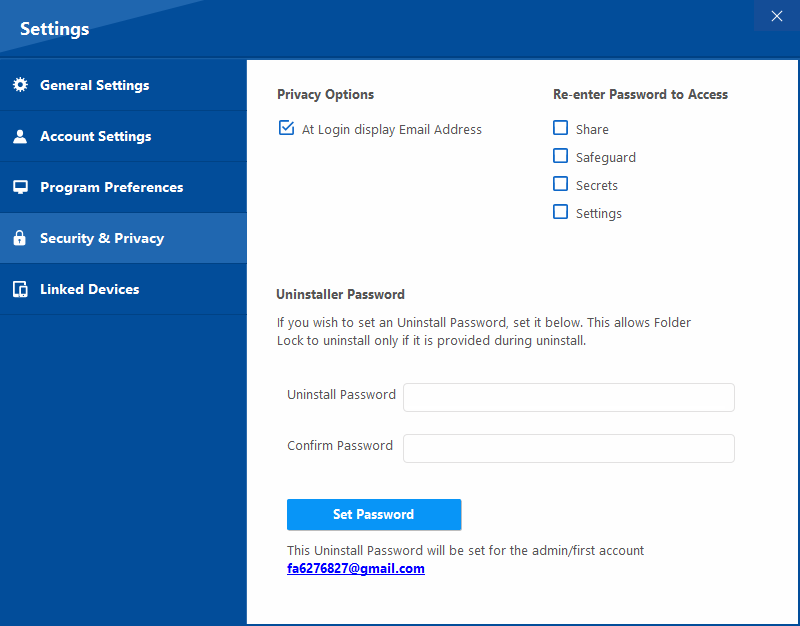
Unlike Google Photos which shares your lock screen PIN, dedicated tools let you set a unique master PIN. Even if a friend borrows your unlocked phone, they cannot open the vault.
Biometric App Lock
You can require a fingerprint specifically to launch sensitive applications (like banking apps or social media), stopping snoops before they even see the app's interface.
Lock Individual Apps
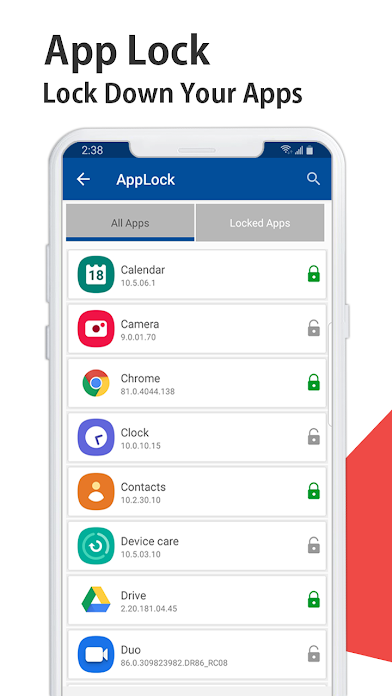
Whether you should understand how to lock WhatsApp so others cannot open it, or enable an Instagram app lock function, dedicated tools secure the entire application, not just a folder inside it.
Hack Attempt Tracking
Advanced lockers silently capture a photo with the front-facing camera if someone enters the wrong PIN, letting you know exactly who tried to access your private data.
Encrypted Cloud Sync
Unlike native folders that trap data on a single phone, premium tools integrate seamlessly with your current cloud accounts (like Google Drive, OneDrive, or Dropbox). Your files are encrypted locally with AES-256 before ever reaching the cloud, allowing secure synchronization across Windows, Mac, iOS, and Android.
Secure Wallets & Private Notes
Your digital life contains more than just photos. Dedicated security vaults provide specialized, encrypted compartments to store your sensitive banking details, credit card numbers, identification documents, and confidential text notes.

Comparing Methods: What Gets Protected?
Google Photos Locked Folder
native function for organizing local media. Uses device lock.
Samsung Secure Folder
Knox-based hardware encryption native to Samsung devices.
Folder Lock (Recommended)
Universal vault and app locker for all Android, iOS, Windows, and Mac devices.
Mobile Privacy Settings You Should Enable Now
Beyond learning how to hide sensitive apps from the home screen or lock photos, there are selected device controls you should audit today.
Ways to Enable App Lock in Google Pixel
Google Pixel devices run "stock" Android, which notoriously lacks a system-wide app locking function. While you can use the Google Photos locked folder for media, if you want to lock Facebook Messenger, Snapchat, or your banking apps on a Pixel, you must use a reliable external app lock. Look for one that explicitly requests "Usage Access" permissions to prevent bypasses.
Ways to Enable Google Password Manager on Samsung
Samsung devices often default to Samsung Pass. To protect your credentials with Google instead: Go to controls > General Management > Passwords and autofill > Tap the gear icon next to Autofill service and select Google. This centralizes your logins securely behind your biometric prompt.
Your Mobile Privacy Audit
Check off these steps to ensure your device is locked down:
Software Pricing: What You Get
If you decide to upgrade from the native Google Photos locked folder to our recommended tool, Folder Lock, here is what the free versus full versions offer.
| Free Version ($0) | Full Premium Version ($39.95) |
|---|---|
| 1 GB Encrypted Locker Size | Unlimited Encrypted Locker Size |
| Sync Across 2 Devices | Sync Across 5 Devices |
| Basic Local Media Hiding | AES 256-bit Cloud Backup & Sync |
| Limited File Sharing | Secure, password-secured File Sharing |
| Standard App Locking | Secure Wallets, Notes, and Desktop Sync |
Common Questions and Answers
Key Takeaways
Learning ways to enable Google Photos Locked Folder is an excellent first step for basic media privacy. It is free, native, and straightforward to use. Since it relies on your phone's primary lock screen PIN and cannot lock individual apps like social media or banking, it leaves gaps in your overall mobile security, that said. For total peace of mind, we recommend a dedicated vault application with an independent password.